Using the Living Canvas
The Living Canvas is Loka's interactive whiteboard -- the core of every lesson. It captures everything that happens during a session: notes, vocabulary, corrections, and teaching moments. Think of it as a living document that grows with each lesson.
What Is the Living Canvas?
Unlike a static whiteboard that gets erased after class, the Living Canvas persists. Every note, keyword, and correction is saved automatically and becomes part of the student's learning record. Over time, it builds into a personalized textbook -- the Living Textbook -- unique to each learner.
Starting a Session
- From your dashboard, click Start Session
- Select the student and service type
- The Living Canvas opens in a new view, ready for your lesson
Starting a session requires an active Loka Creator subscription. If you see a message about purchasing a seat, check your subscription status.
Canvas Features
Text Editing
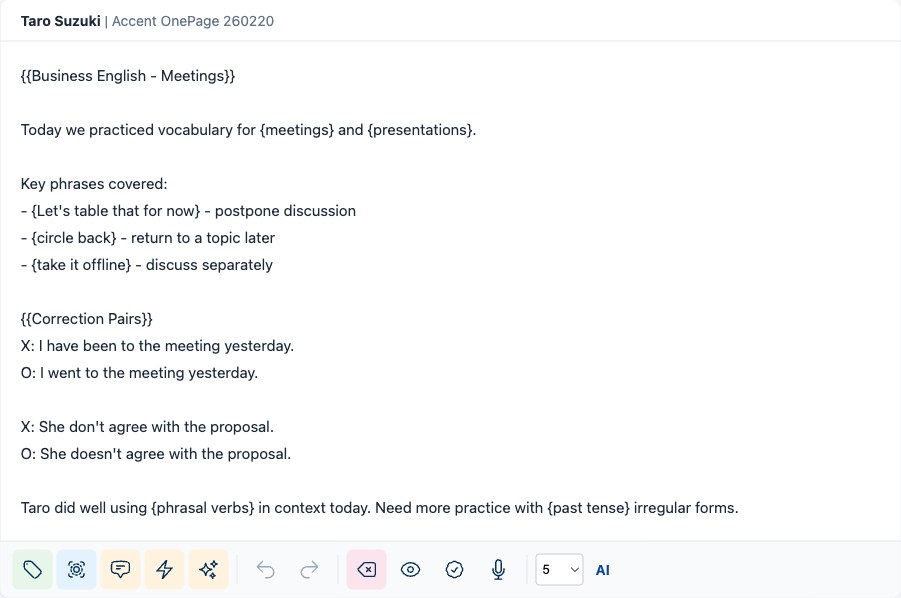
The canvas is a text-based editor where you capture lesson content:
- Type text -- write notes, corrections, and examples in the editor area
- Add topics -- organize your canvas content by topic tags
- Add sections -- structure your notes into logical blocks
Keywords and Keyphrases
Record important vocabulary and phrases using curly bracket syntax directly in the editor:
{word}-- marks a single word as a keyword{multiple words}-- marks a phrase as a keyphrase{{Topic Name}}-- creates a topic tag to organize sections
You can also highlight text and click the Keyword or Topic Tag buttons in the toolbar below the editor.
For a complete walkthrough of the syntax, toolbar buttons, and workflow, see Creating Content: Keywords, CIPs & ARPs.
Active Recall Pairs (ARPs)
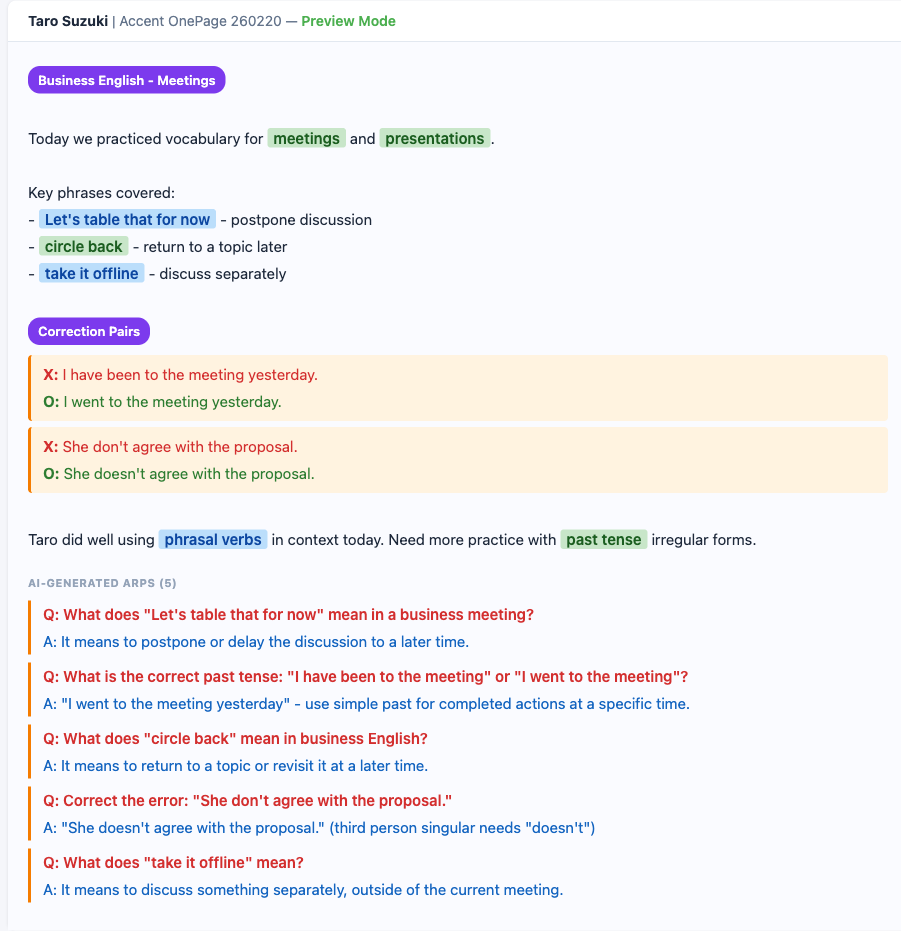
ARPs are question-answer pairs that reinforce learning through active recall:
- Manual: Type question-answer pairs directly on the canvas
- AI-generated: Click the AI button on the toolbar to auto-generate ARPs from your notes, keywords, and correction pairs. Choose how many (3, 5, 7, or 10) from the dropdown
- ARPs are stored and available for review in the student's lesson materials
Learn more: Creating ARPs with AI | AI features setup
Correction Pairs (CIPs)
Mark language as correct or incorrect during the lesson:
- Incorrect phrase -- what the student actually said
- Correct phrase -- the corrected version
Correction pairs are the foundation of the Living Textbook methodology. They capture real moments from conversation and turn them into personalized learning material.
Learn more: Creating Correction Pairs
Auto-Save
The canvas saves automatically as you work. You never need to worry about losing your notes -- everything is persisted in real time.
Exporting Your Canvas
After a session, you can export the canvas in two formats:
PDF Export
Generate a clean, printable PDF of the session canvas:
- Open the canvas for the completed session
- Click the Export menu
- Select Download PDF
The PDF includes all text, keywords, ARPs, and correction pairs from the session.
MP3 Export (Text-to-Speech)
Convert your canvas text into an audio file using AWS Polly:
- Open the canvas for the completed session
- Click the Export menu
- Select Generate MP3
- Choose the target language and voice
- The MP3 is generated and available for download
This is particularly useful for pronunciation practice -- students can listen to correct phrases on the go.
MP3 exports work best when your canvas text is clean and well-structured. Use keywords and correction pairs rather than freehand notes for the clearest audio output.
Canvas History
Every session canvas is saved and accessible from the Canvas tab on your dashboard. You can:
- Browse past sessions by date or student
- Reopen any canvas to review or continue adding notes
- Track a student's progress over time by reviewing their canvas history
Tips for Effective Canvas Use
- Structure your canvas -- use sections to separate vocabulary, grammar, and conversation topics
- Record corrections in real time -- capture correction pairs as they happen, not after the lesson
- Add ARPs for key takeaways -- focus on the 3-5 most important things from each session
- Export after every lesson -- send students a PDF or MP3 so they can review independently